How To Install Python
Install Python in Windows
Visit the official Python website. Python Download Link
Download Python for Windows by clicking the Download Python install manager button or standalone installer for Python 3.14.3 link as shown in the following image:
Select the latest version of Python for Windows and download the installer.
Run the downloaded installer and follow the instruction.
Make sure to add python path to your system by checking the box that says "Add Python to PATH" during installation.

Make Sure Python Is Installed
To make sure that Python is installed properly, you can check using cmd command:
-
Open
cmd. -
Type
python --versionorpy --versioncommand in cmd and run the command by pressing enter. -
You will get Python version like this
Python 3.14.3, if it is installed properly as shown in below: -
To make sure that pip, the package installer for Python, has been installed, type
pip --versioncommand in cmd and run the command by pressing enter.

Install Python in Mac OS
Visit the official Python website. Python Download Link
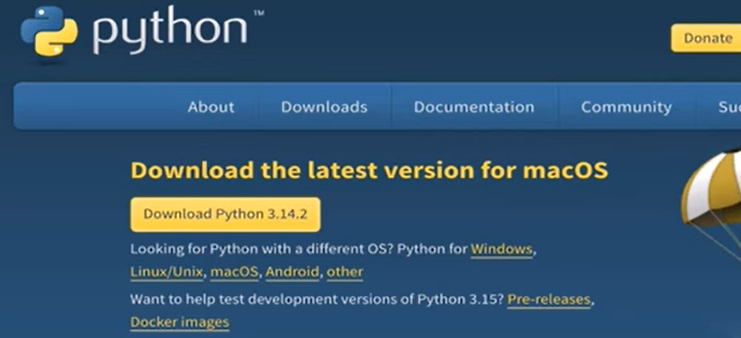
Download Python for Mac OS by clicking the Download Python button as shown in the following image:
Select the latest version of Python for Mac OS and download the Python package file.
Run the downloaded package file and follow the instructions to install python.
Make Sure Python Is Installed in Mac OS
To make sure that Python is installed properly, you can check it in the terminal:
-
Open
terminal. -
Type
python3 --versioncommand in terminal and press enter to run the command. -
You will get Python version like this
Python 3.14.2, if it is installed properly. -
To make sure that pip, the package installer for Python, has been installed, type
pip3 --versionalternativelypip --versioncommand in terminal and press enter to run the command.